
Your First Hour With Google Foresight, the Offline Mac Notetaker
Google's free Foresight app takes meeting notes on your Mac without the cloud, but it needs about 4GB of models and a few fixes first. Here is the first hour: setup, headphones, Live Enhance, Live Assistance and a Chat test.
Google AI Edge Foresight is a free, experimental Mac app that takes meeting notes without sending anything to the cloud. Google released it on 6 October, running its new EmbeddingGemma 2 search model plus Gemma 4 on your laptop. It listens to your microphone and your Mac's system audio, so it works with Zoom, Meet or a meeting room, with no bot joining.
Being experimental, it needs some setting up. Here's how I'd spend the first hour, based on Google's launch post and the two hands-on tests published so far.
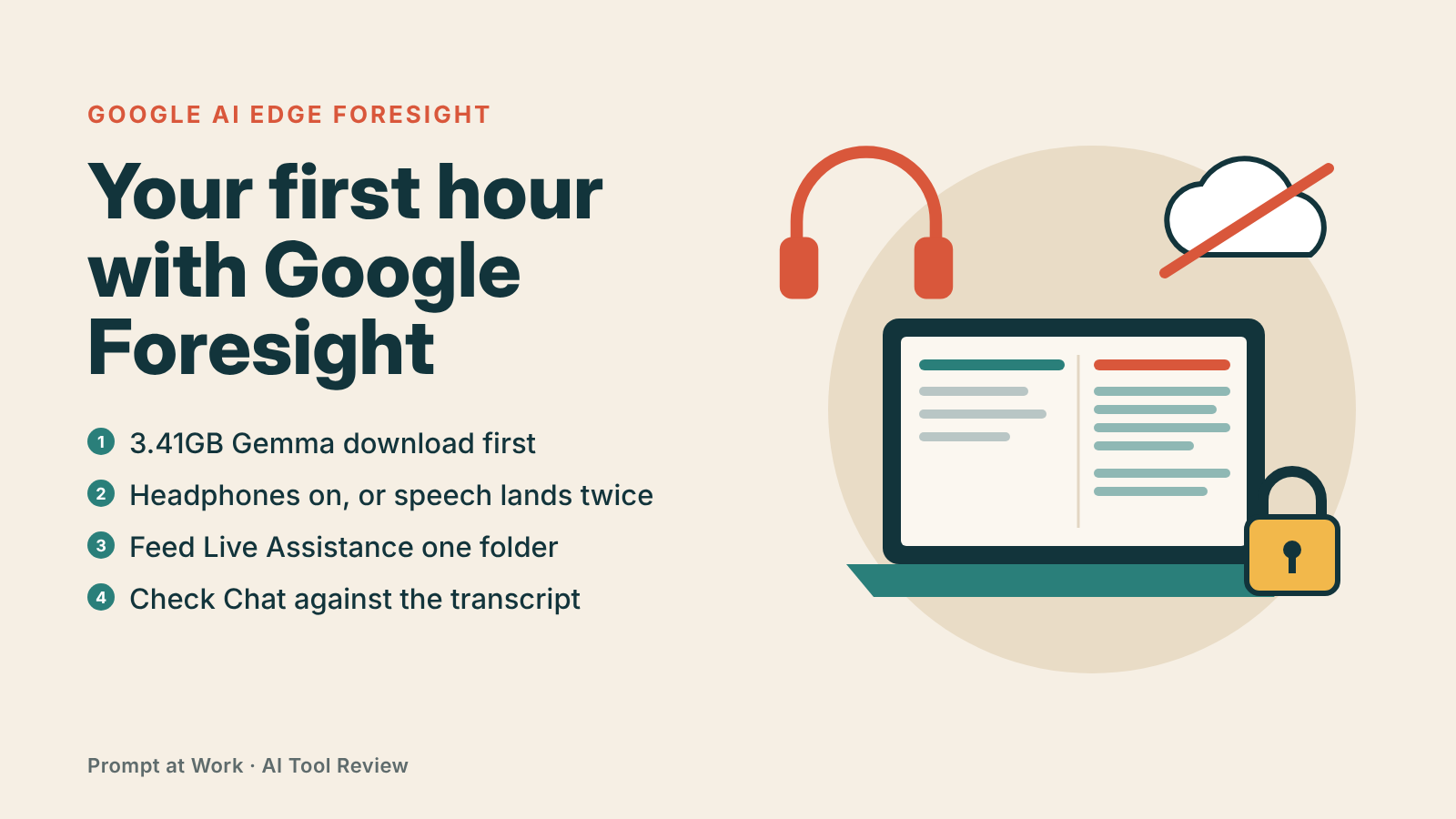
Minutes 0 to 10: the 3.41GB Gemma download, and which size to pick
The installer from developers.google.com/edge/foresight is small. The real wait comes next: a tester at talat (a rival notetaker, so read their verdicts with that in mind) found it fetches about 800MB of speech and search models plus a 3.41GB Gemma model before you can record. That took about eight and a half minutes on a fast connection.
The setup screen offers two sizes, Gemma 4 E4B and Gemma 4 12B. You can't skip the language model, only resize it. On a base MacBook Air I'd pick E4B, on office Wi-Fi rather than a hotspot.
No Google account is needed; sign in only for Drive files and Calendar reminders.
Minutes 10 to 15: two permissions and a pair of headphones
Foresight needs microphone access (System Settings, Privacy and Security, Microphone) and a system audio prompt on first launch.
Then plug in headphones. With laptop speakers, talat saw remote speech land in the transcript twice, the second copy garbled. It also labels speakers only as "you" and "everyone else", based on which audio channel the voice came through. No names, no voice learning.
Minutes 15 to 25: shorthand on the left, Live Enhance on the right
This is the core feature. Press Start transcribing (recording is manual; it won't notice that a call has started), then type rough bullets like "Q3 budget, Ravi unsure". Live Enhance expands each one on the other half of the screen using what was said.
If the enhanced side stays blank while Live Enhance shows ON, talat's fix was to switch the note style from Standard to Concise and back. The full transcript sits behind its own tab; check it before trusting a polished bullet.
Minutes 25 to 40: give Live Assistance one folder to read
Live Assistance is easy to overlook, because it does nothing until you feed it. Add a local folder or Drive files (PDFs, Google Docs, Office files, text, Markdown and bookmarks), then tag them with labels. When a topic from those files comes up in a meeting, a context card appears with the exact citation.
Start with one or two PDFs you know well. A tester at Recall, another rival, found YouTube links saved only the page footer and web articles didn't save.
Minutes 40 to 60: test Chat on a meeting you can check
Record a ten-minute call, then ask Chat three questions you already know the answers to. This is the weakest part today. talat's Chat failed three times to summarise a meeting nine minutes in, and a summary of a near-silent recording described a team meeting that never happened.
While you're there, open the Stats page in the sidebar. It counts your meetings and the "tokens saved" by running locally.
Hindi and Hinglish: Google lists no supported languages, and talat found no language setting; French lost its accents. I couldn't find anyone who has tried a Hindi or Hinglish meeting, so test one before relying on it.
Offline audio, but analytics still go to Google
Google says audio, transcripts and files are processed on your Mac and never uploaded. talat found no transcript text leaving the machine, but did find usage analytics sent to Google with per-meeting metadata and no visible opt-out, and a background job that relaunched the app every four hours after they quit it.
No bot also means nobody on the call sees a notetaker. eWeek's advice to IT teams applies to everyone: agree when people must be told about a recording, then tell them.
Quick facts
- Free, with no paid plan announced.
- Mac only, built for Apple Silicon; Google hasn't published RAM or macOS minimums.
- Runs Gemma 4 for notes and chat, EmbeddingGemma 2 (740M parameters) for search.
I'd give Foresight that hour if you run in-person workshops or sit on calls where a cloud notetaker isn't allowed. I wouldn't hand it a client call yet. English transcription is its strong part (both testers called it fast and accurate), while Chat and summaries still need checking against the transcript every time.
Comments
Comments are reviewed before they appear publicly.