
Five Canva Features That Save Hours, and Where to Find Them
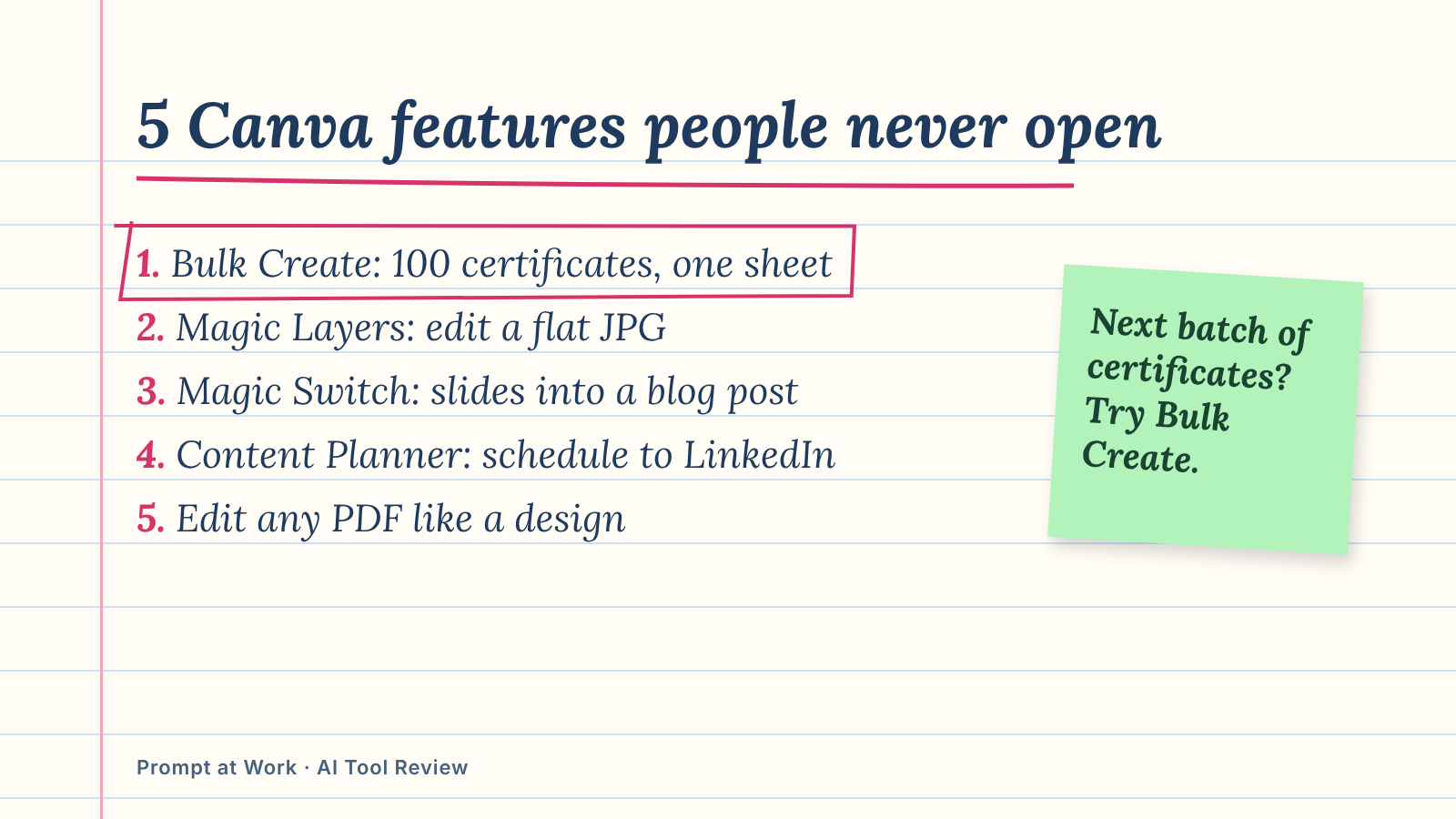
Canva's templates are what people come for, but the features that save hours sit one menu deeper. Here are five that rarely get opened, with where to find each one and what to use it for.
Canva is where a lot of us make posters, slides and Instagram posts without opening anything heavier. The templates are what people come for. But the features that save real hours sit one or two clicks deeper, under menus most people never open.
Here are five I'd show anyone who uses Canva every week, with where to find each one and what to use it for.
1. Bulk Create: 100 certificates from one spreadsheet
Design one certificate, then feed Canva a sheet of names, and it makes one copy per row. Each column becomes a field you can drop onto the design: name, course, date, even a photo.
- Where: click the page background, then Edit, then Bulk create. You can also start from a selected range in a Canva Sheet.
- Data: upload a CSV or Excel file, type a table by hand, or use a Canva Sheet (up to 300 rows from a Sheet).
- Use it for: workshop certificates, name badges, product cards with prices, or personalised invites.
- Plan: Pro and above, on the desktop website or the desktop app.
Preview a few before you generate everything. Under the three dots next to Create designs, you can choose one big multi-page file or separate designs.
2. Magic Layers: make a flat image editable again
Someone sends you a poster as a JPG and asks for "just one change". Magic Layers splits that flat image into separate layers, so the text, shapes and graphics become pieces you can move, restyle or delete.
- Where: on the home page, choose Magic Layers and pick an image. Inside a design, select the image, then Edit, then Magic Layers.
- Works best on: graphic designs and illustrations with clear elements. Photographs often don't separate cleanly, and images over 5,000 pixels on the long side aren't supported.
- Catch: it's an AI tool, so every use comes out of your monthly AI allowance.
I'd rather spend AI uses on this than on generating new images. Fixing an existing design is usually what clients actually ask for.
3. Magic Switch: one deck becomes a blog post, a summary or another language
Most people know the Resize button turns an Instagram post into a story. Fewer notice that Magic Switch goes further. It can convert a presentation into a summary, an email or a blog post, and translate a design into another language.
- Where: the Resize button at the top of the editor.
- Use it for: turning workshop slides into a recap email for attendees, or a second-language version of a poster.
- Plan: Canva lists it under Pro; its page doesn't spell out the plans further.
- Check: read every translated line before you post it. Machine translation still misses tone.
4. Content Planner: schedule LinkedIn and Instagram posts from Canva
If you design in Canva and then download, open LinkedIn and upload, you're doing one step too many. Content Planner lets you pick a date and time and post straight from Canva.
- Where: More in the home page side menu, then Content Planner. Or, inside a design: Share, then See all, then Schedule.
- Platforms: LinkedIn, Facebook Pages, Instagram Business accounts, Pinterest, Slack, Tumblr and X (Twitter).
- Limits: one platform per design at a time, and Instagram scheduling only works from a desktop browser.
- Plan: Pro and Business. Pro Lite doesn't include it.
5. Open a PDF and edit it like a design
Drag a PDF onto the Canva home page and it opens as an editable design. Text boxes become editable, images can be swapped, and you can add pages before exporting it back as a PDF.
- Limits: up to 500 pages and 300MB. Scanned PDFs come in as one flat picture, so nothing in them is editable.
- Use it for: updating last year's brochure, a client's rate card or an old syllabus without asking for the source file.
- Plan: Canva's help page doesn't tie PDF editing to a paid plan.
Expect small layout shifts and a font or two to be swapped. Give the result one careful look before you send it.
The Pro Lite surprise
Canva sells a cheaper plan called Pro Lite in India and Indonesia. It includes the premium templates, background remover and Magic Resize, but not Canva AI's conversational design, and its AI allowance is the same as the free plan. Content Planner isn't in it either. If two of the features above were the reason you upgraded, check which plan you're on under Settings, then Billing. If your Canva came free with Jio, it's Pro Lite on every eligible plan except the ₹399 one.
Quick facts
- Privacy: under Your account, then Privacy controls, you can stop AI features learning from your design content. On Free and Pro it's your switch; Canva's help page doesn't say which way it starts.
- Price: Free plan available; Pro is ₹4,000 a year in India.
- Best for: trainers, small businesses and creators who make the same kinds of designs every week.
Comments
Comments are reviewed before they appear publicly.